

Configure OIDC SSO Login as an Administrator (Keycloak Example)
This document describes how to configure an OIDC SSO Provider in SwanLab, as well as the callback address and field mapping required on the IdP side.
1. Feature Introduction
OIDC (OpenID Connect) is a standard protocol that adds an identity layer on top of OAuth2. SwanLab obtains the authorization endpoint, Token endpoint, and JWKS through Issuer Discovery. After completing the authorization code flow, SwanLab validates the ID Token and maps the third-party user from the ID Token claims.
Account policy:
- First-time OIDC login automatically creates and binds a SwanLab account.
- Bound users log in directly after authentication succeeds.
2. Procedure
- In the SwanLab administrator control panel, click to create OIDC.
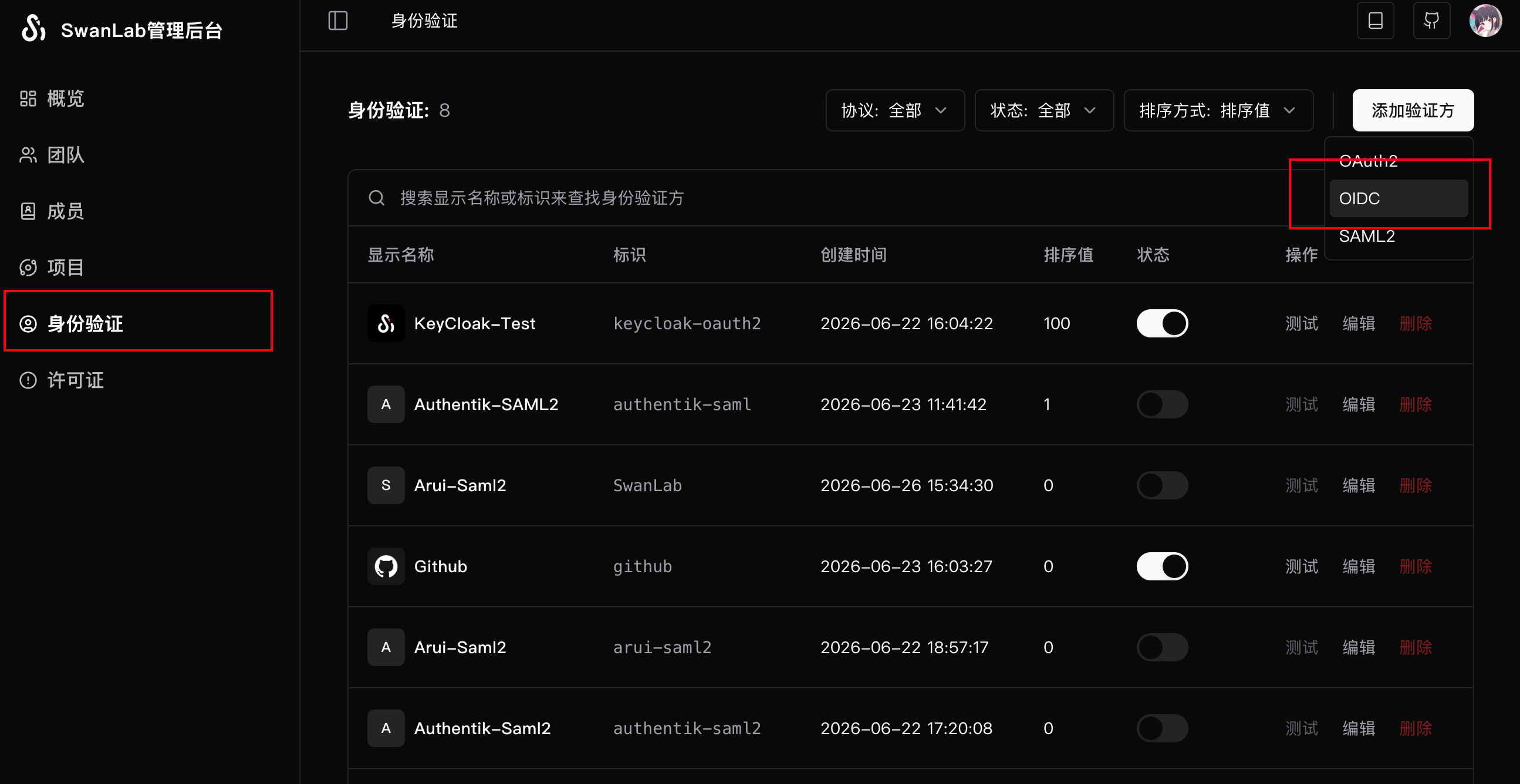
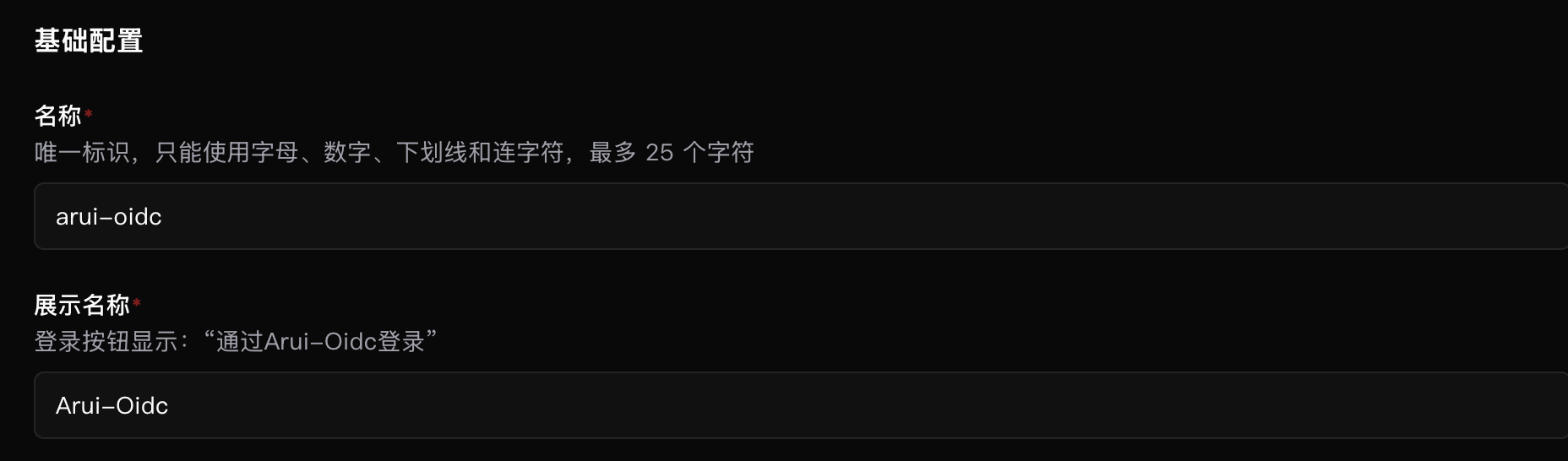
- Fill in the basic configuration.
| Field | Required | Description |
|---|---|---|
| Name | Yes | Unique Provider identifier. Up to 25 characters. Only letters, digits, underscores, and hyphens are allowed |
| Display name | Yes | Name shown on the login button. Up to 100 characters |
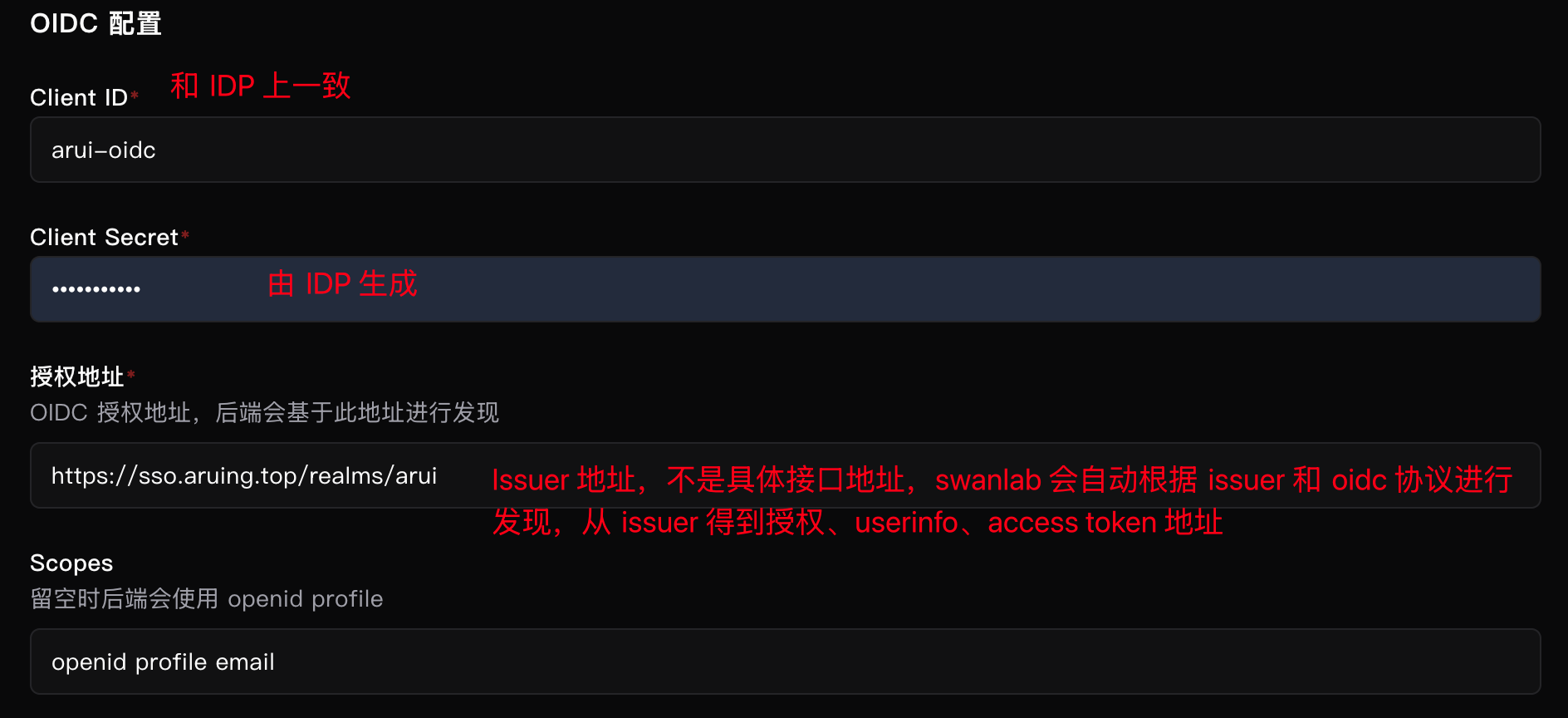
- Fill in the OIDC configuration.
| Field | Required | Description |
|---|---|---|
| Client ID | Yes | Client ID configured on the IdP. It is usually manually entered when configuring the IdP |
| Client Secret | Yes | OAuth2 Client Secret assigned to SwanLab by the IdP. It is usually generated by the IdP and must be obtained from the IdP |
| Authorization URL | Yes | OIDC Issuer URL. SwanLab performs Discovery based on this address. Note that this is not a specific API endpoint |
| Scopes | No | Space-separated authorization scopes. Defaults to openid profile when left empty, but manual configuration is recommended |
For "Authorization URL", you only need to enter the OIDC Issuer URL. Unlike OAuth2, it does not need to point to a specific path, because OIDC defines route discovery in the standard protocol. If your enterprise IdP configuration does not comply with the standard, adjust it on the IdP side.
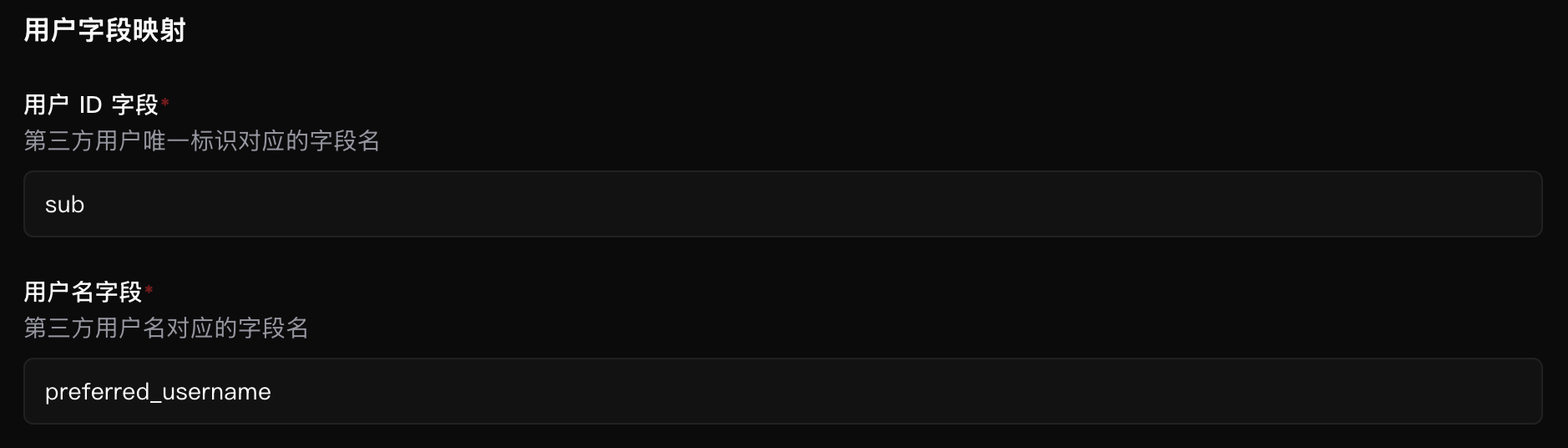
- Fill in user mapping.
| Field | Required | Description |
|---|---|---|
| User ID field | Yes | Field name corresponding to the third-party unique user ID |
| Username field | Yes | Field name corresponding to the third-party username. It is used as the default username during automatic account creation |
| Recommended unique user ID field | Recommended username field |
|---|---|
sub | preferred_username, name |
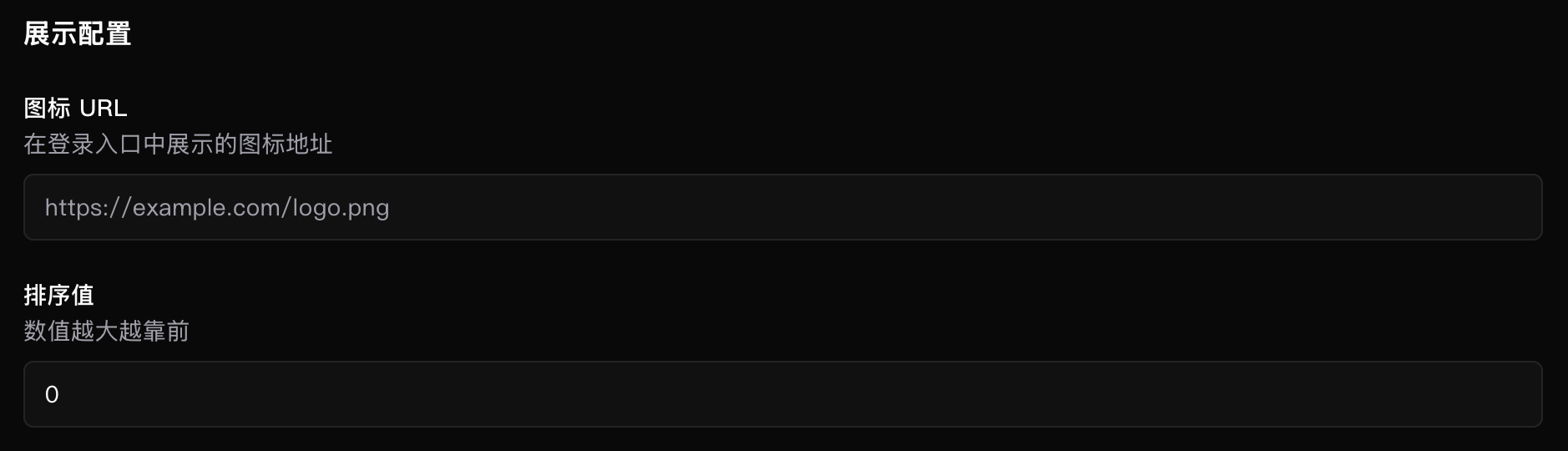
- Fill in the display configuration.
We recommend using an online link for the Icon URL.
- Enable the IdP.
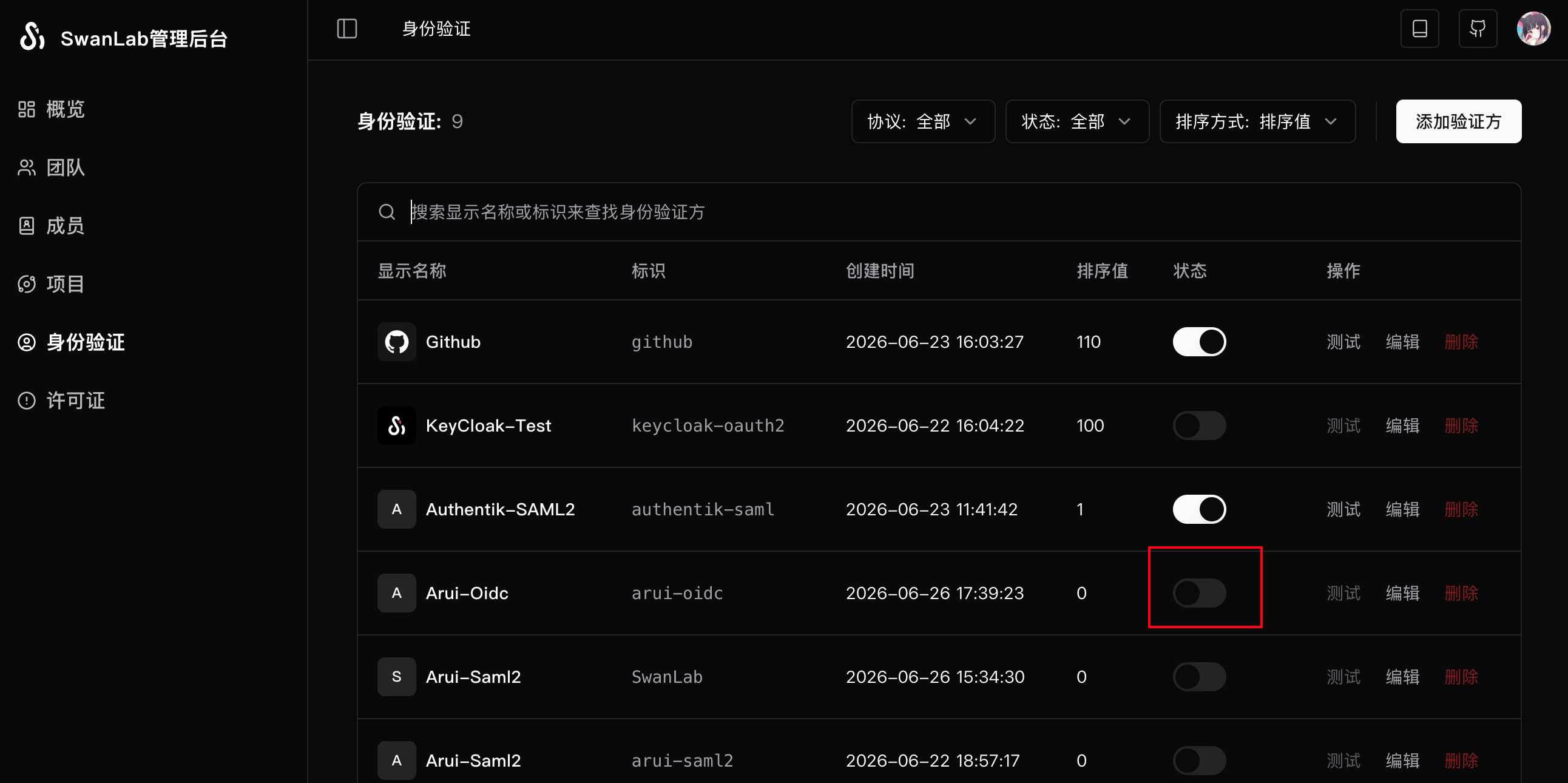
After creation, you can view existing IdPs in the list. After enabling one, you can test and use it:
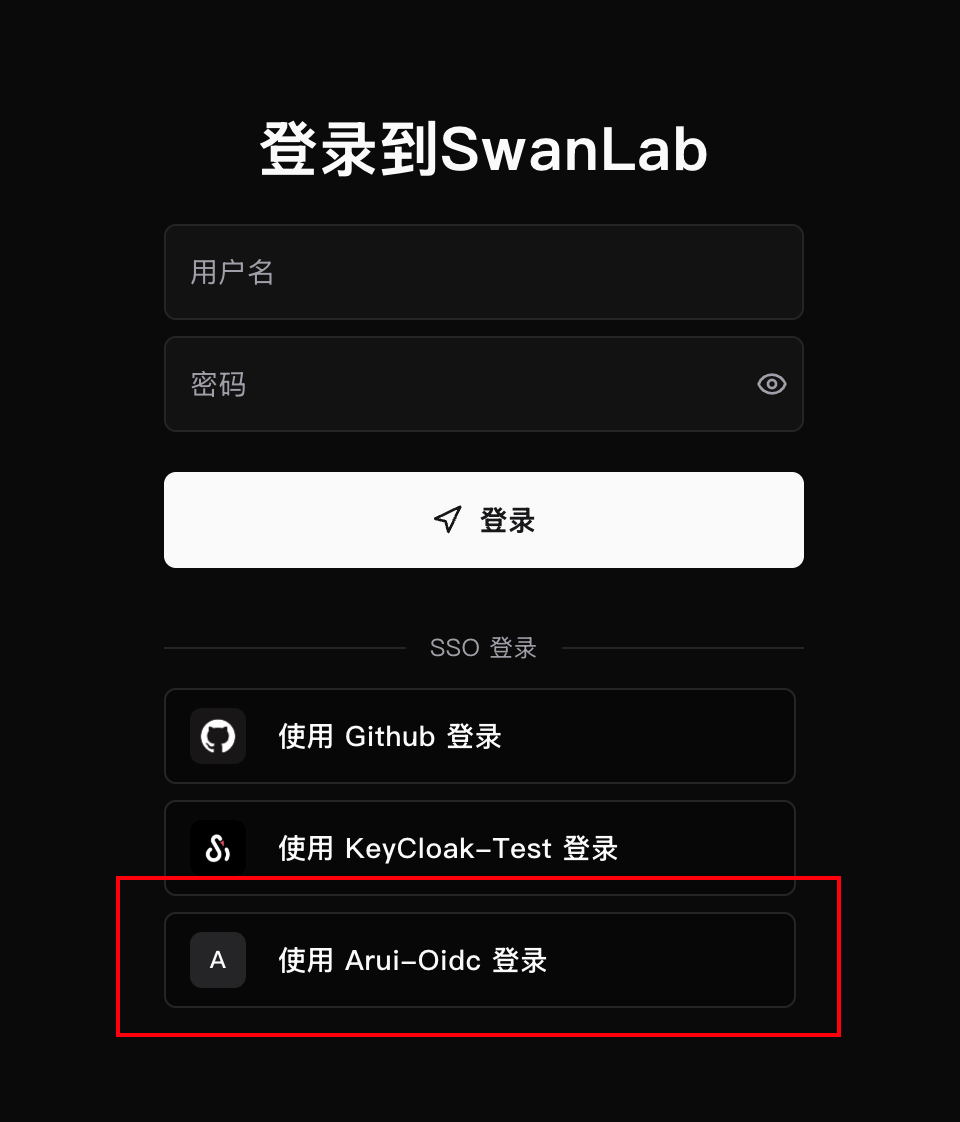
- View it in the login list.
3. IdP-side Configuration
Configure the Redirect URI in the IdP OIDC application:
https://<SwanLab external access address>/api/auth/sso/oidc/callback/<Provider name>Ensure that this address exactly matches the address generated by SwanLab, including protocol, domain, port, subpath, and Provider name.
Example:
https://swanlab.example.com/api/auth/sso/oidc/callback/arui-oidcWe recommend enabling Authorization Code Flow and ensuring that an ID Token is returned.
The following uses Keycloak as an example:
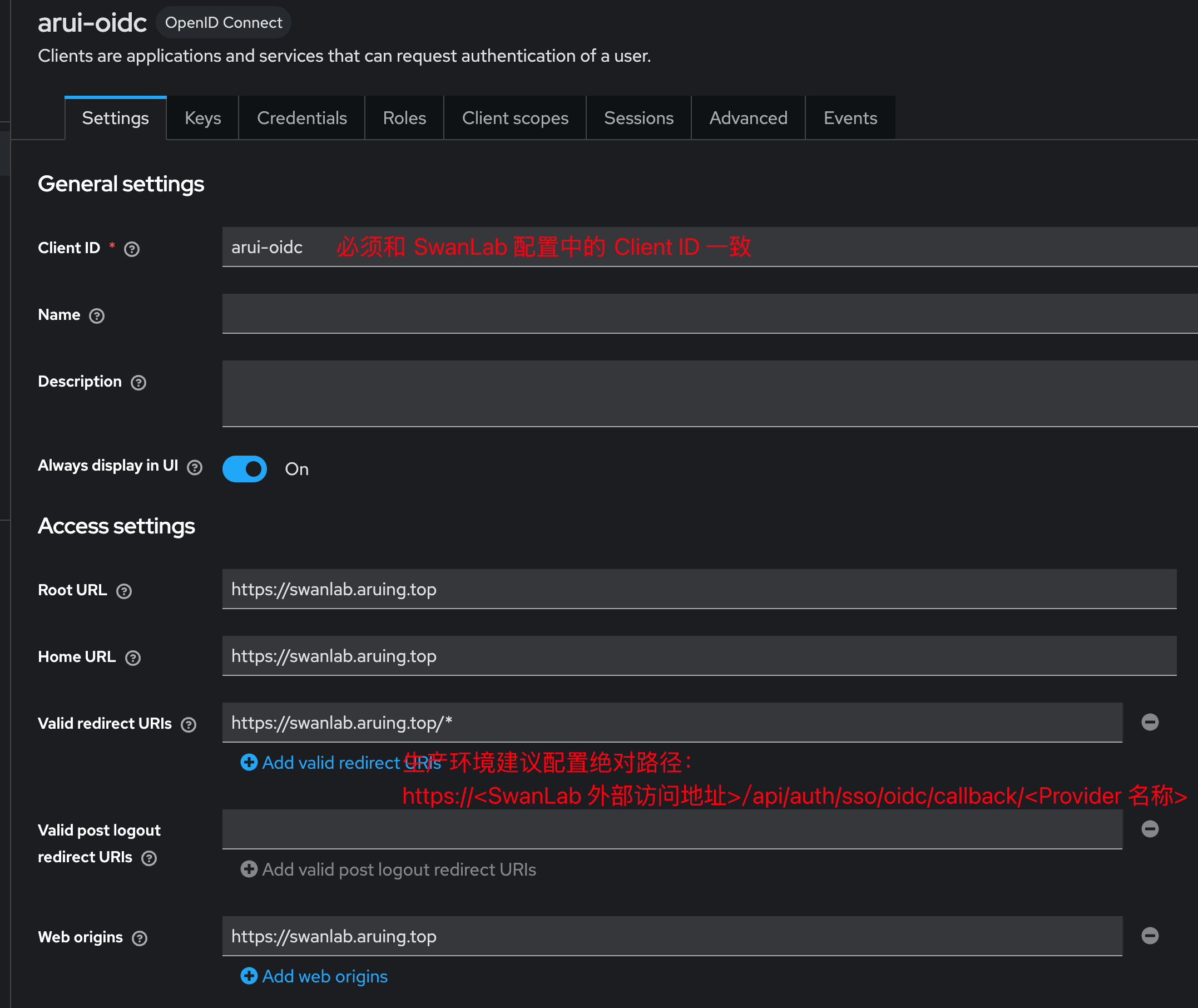
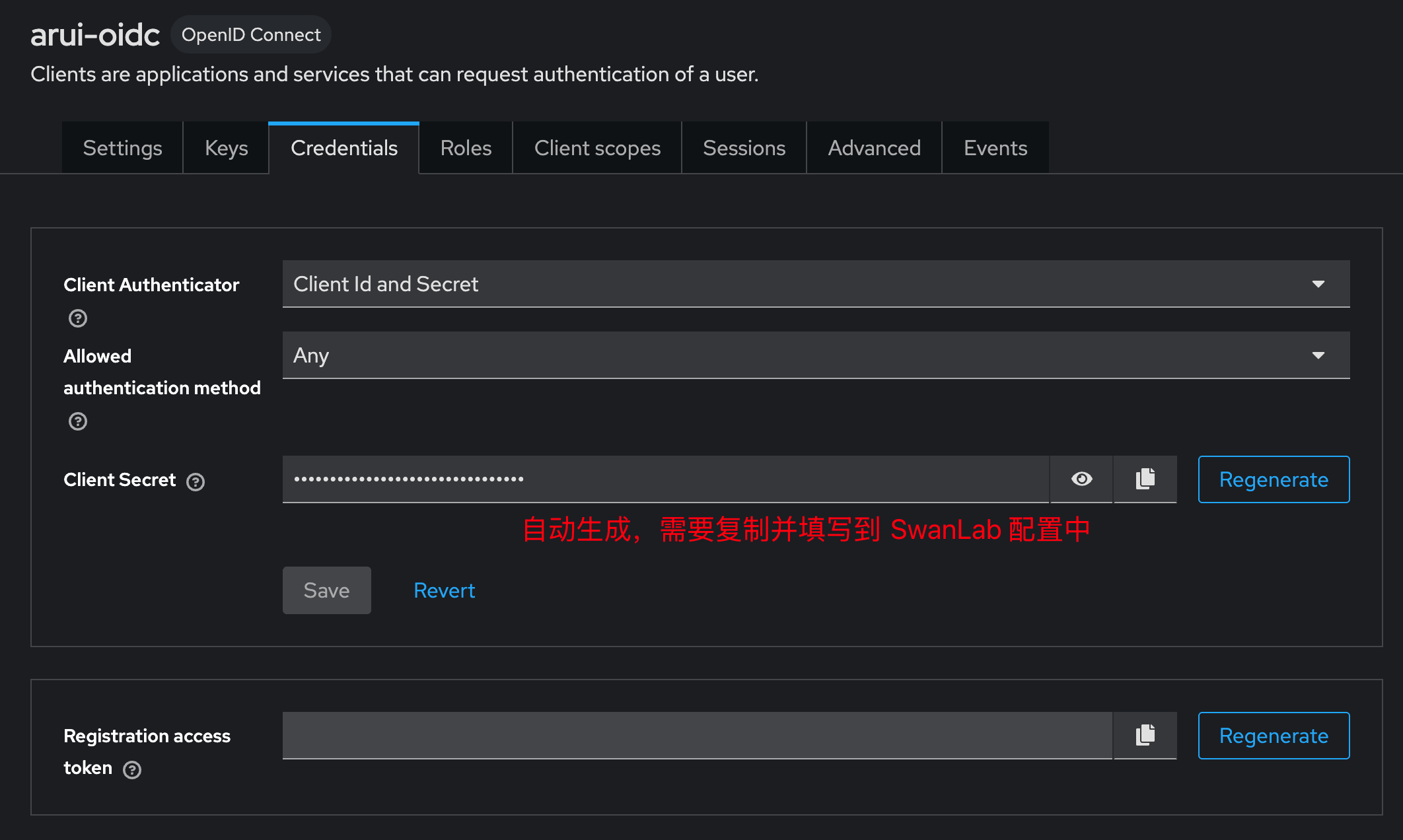
The Client Secret is usually generated by the IdP. Copy it and fill it in the SwanLab configuration:
SwanLab caches IdP information for OIDC/SAML2 in the backend. If information on the IdP side changes, SwanLab may not synchronize the updates immediately. You can refresh the cache by modifying any field in the corresponding SwanLab configuration.