
Configure SAML2 SSO Login as an Administrator (Keycloak and Authentik Examples)
This document describes how to configure a SAML2 SSO Provider in SwanLab, as well as the SP Metadata, ACS, EntityID, and attribute mapping required on the IdP side.
1. Feature Introduction
SAML2 SSO applies to scenarios where an enterprise already has a SAML IdP. SwanLab currently initiates login as an SP (Service Provider), and the request is signed. After the IdP returns a SAMLResponse, SwanLab validates the response in ACS, parses the Assertion, and maps the third-party user through Attributes.
Account policy:
- First-time SAML2 login automatically creates and binds a SwanLab account.
- Bound users log in directly after authentication succeeds.
Currently, only SP-initiated login is supported. Users cannot initiate login directly from the IdP portal.
2. Procedure
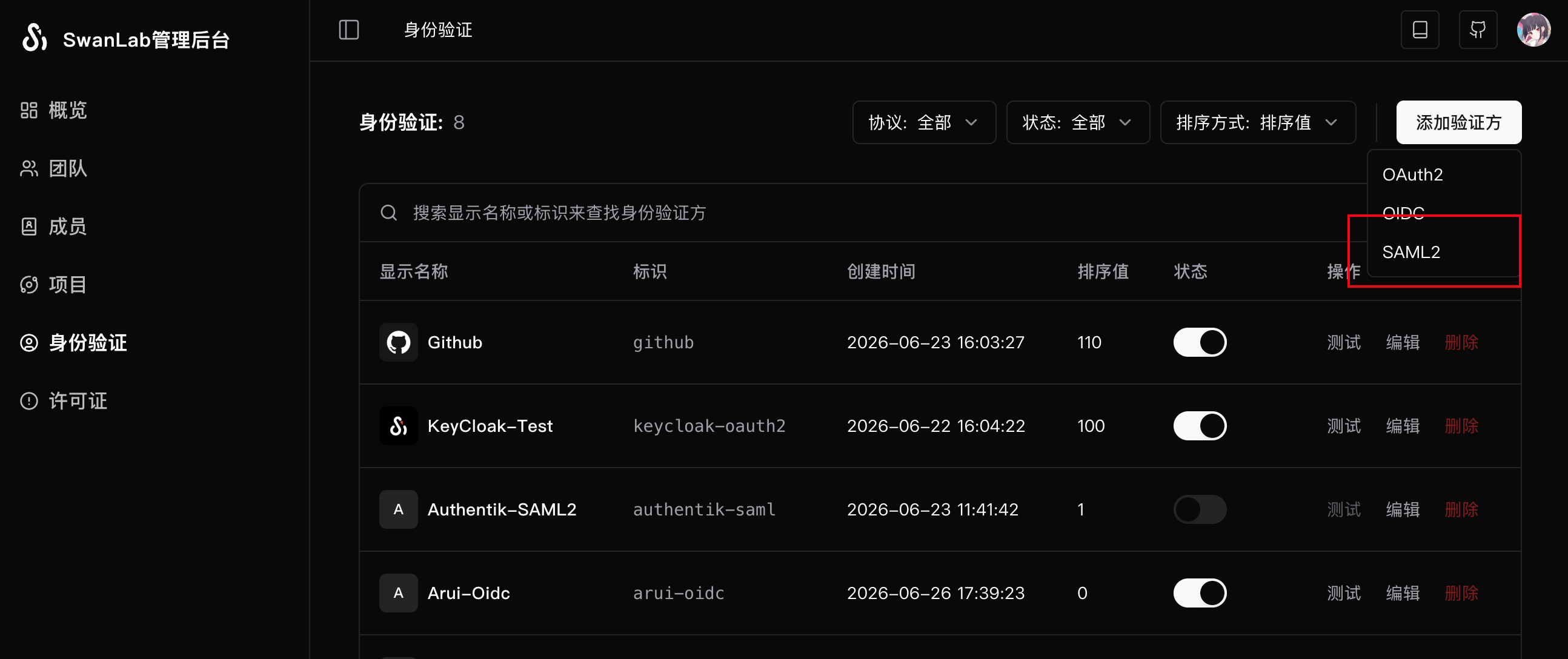
- In the SwanLab administrator control panel, click to create SAML2.
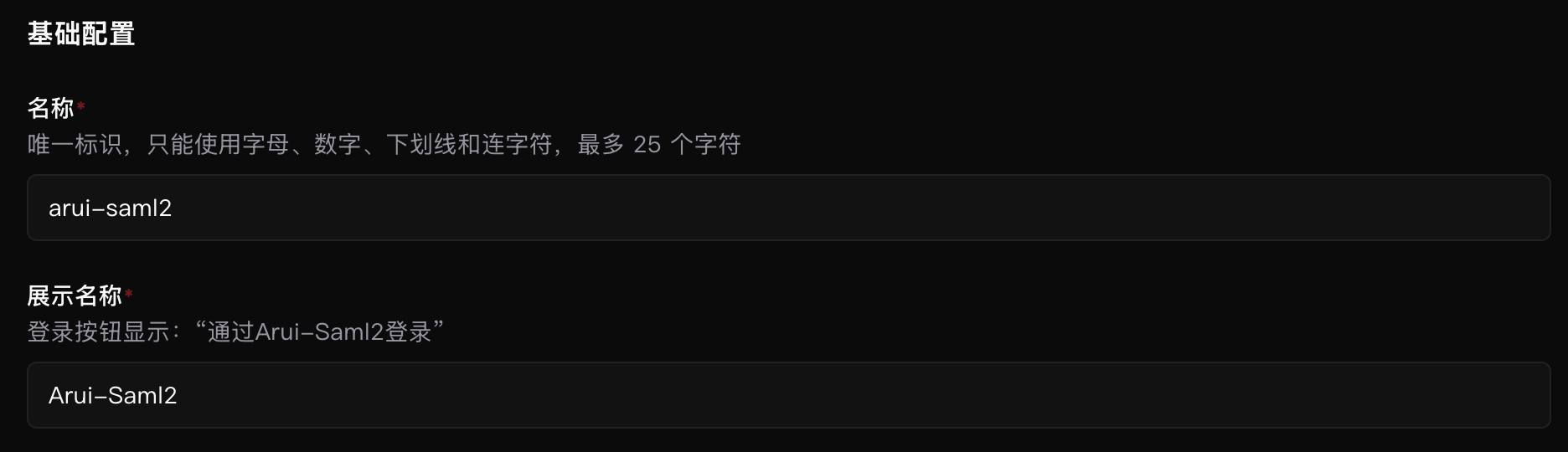
- Fill in the basic configuration.
| Field | Required | Description |
|---|---|---|
| Name | Yes | Unique Provider identifier. Up to 25 characters. Only letters, digits, underscores, and hyphens are allowed |
| Display name | Yes | Name shown on the login button. Up to 100 characters |
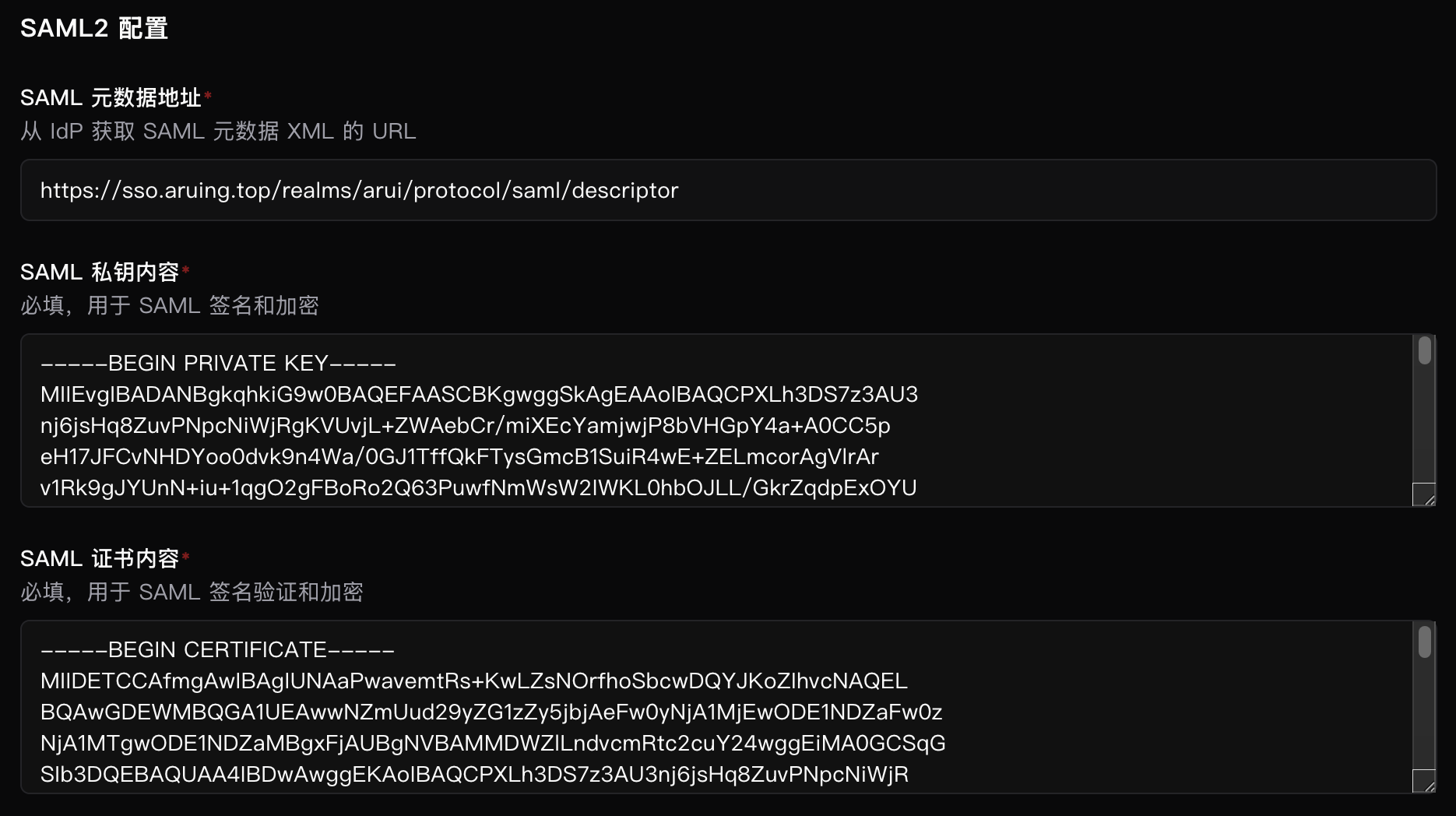
- Fill in the SAML2 configuration.
| Field | Required | Description |
|---|---|---|
| SAML Metadata URL | Yes | URL of the IdP Metadata XML |
| SAML private key content | Yes | Private key PEM content used by SwanLab as the SP |
| SAML certificate content | Yes | Certificate PEM content used by SwanLab as the SP |
SwanLab signs AuthnRequests, so the certificate is required. When configuring the IdP, you also need to enter the certificate used here on the IdP side.
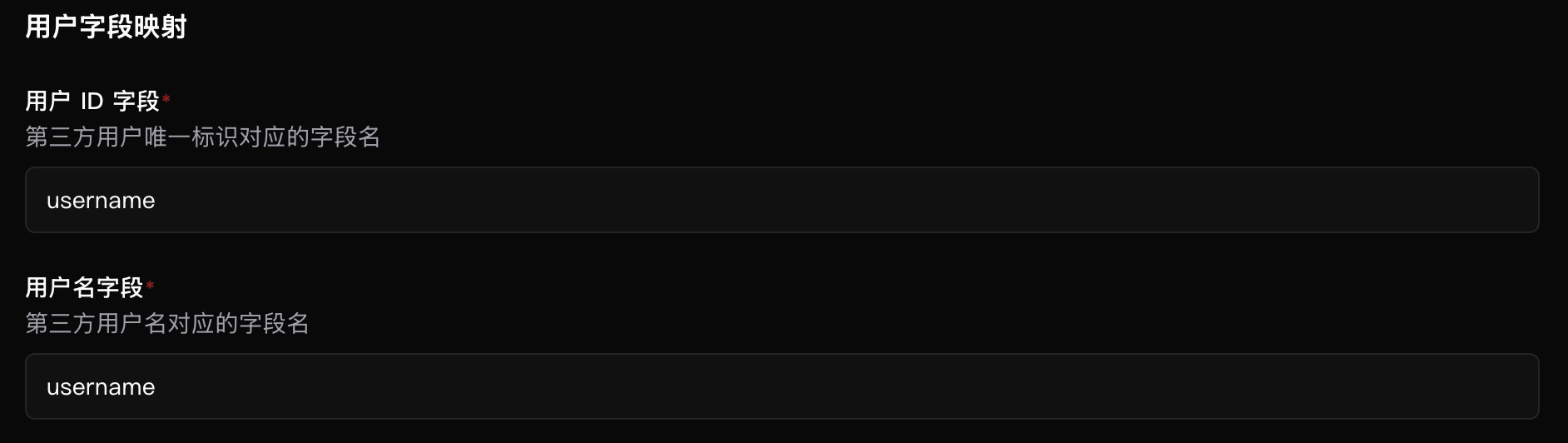
- Fill in user mapping.
| Field | Required | Description |
|---|---|---|
| User ID field | Yes | Field name corresponding to the third-party unique user ID |
| Username field | Yes | Field name corresponding to the third-party username. It is used as the default username during automatic account creation |
| Recommended unique user ID field | Recommended username field |
|---|---|
Stable Attributes such as uid, employeeNumber, and email | username, uid |
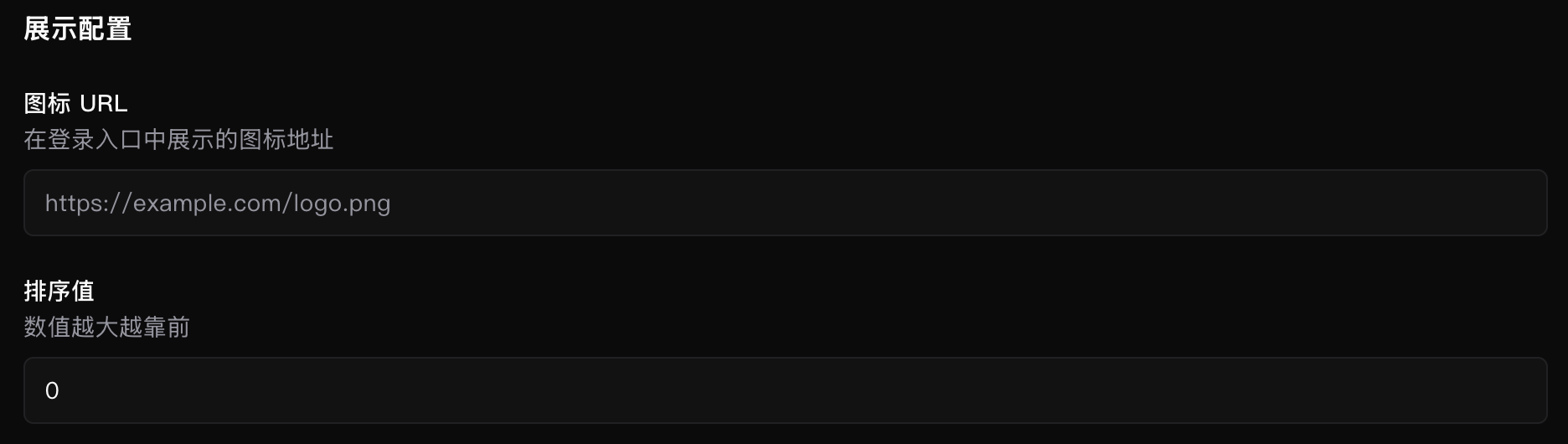
- Fill in the display configuration.
We recommend using an online link for the Icon URL.
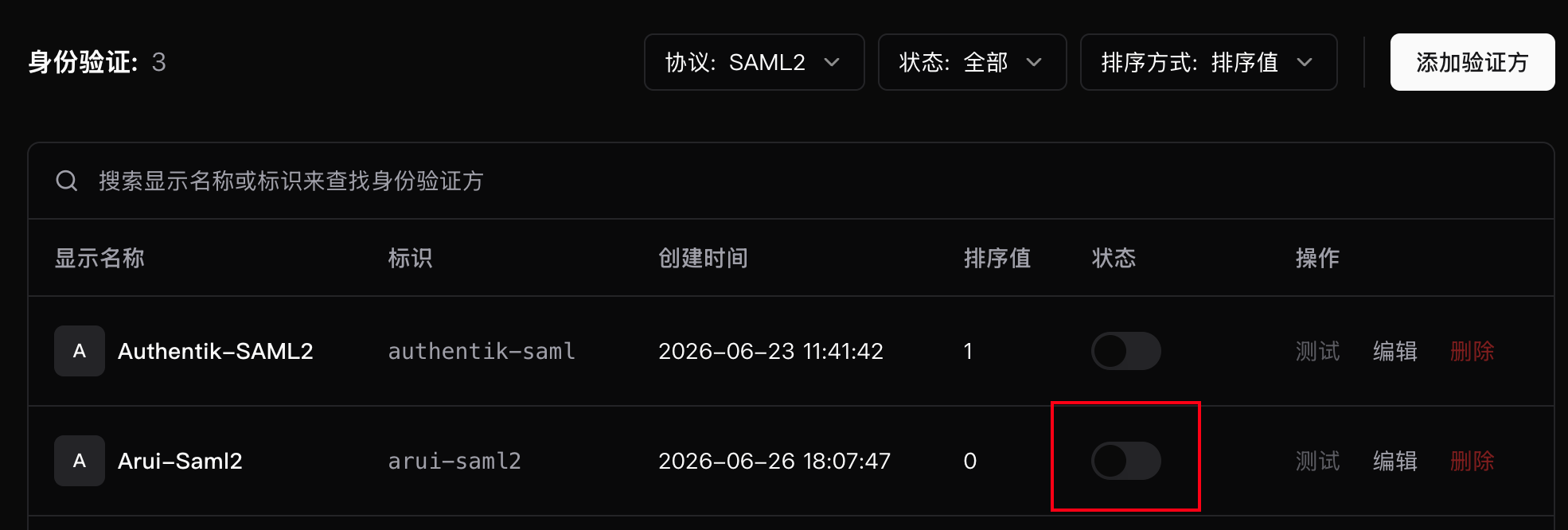
- Enable the IdP.
After creation, you can view existing IdPs in the list. After enabling one, you can test and use it:
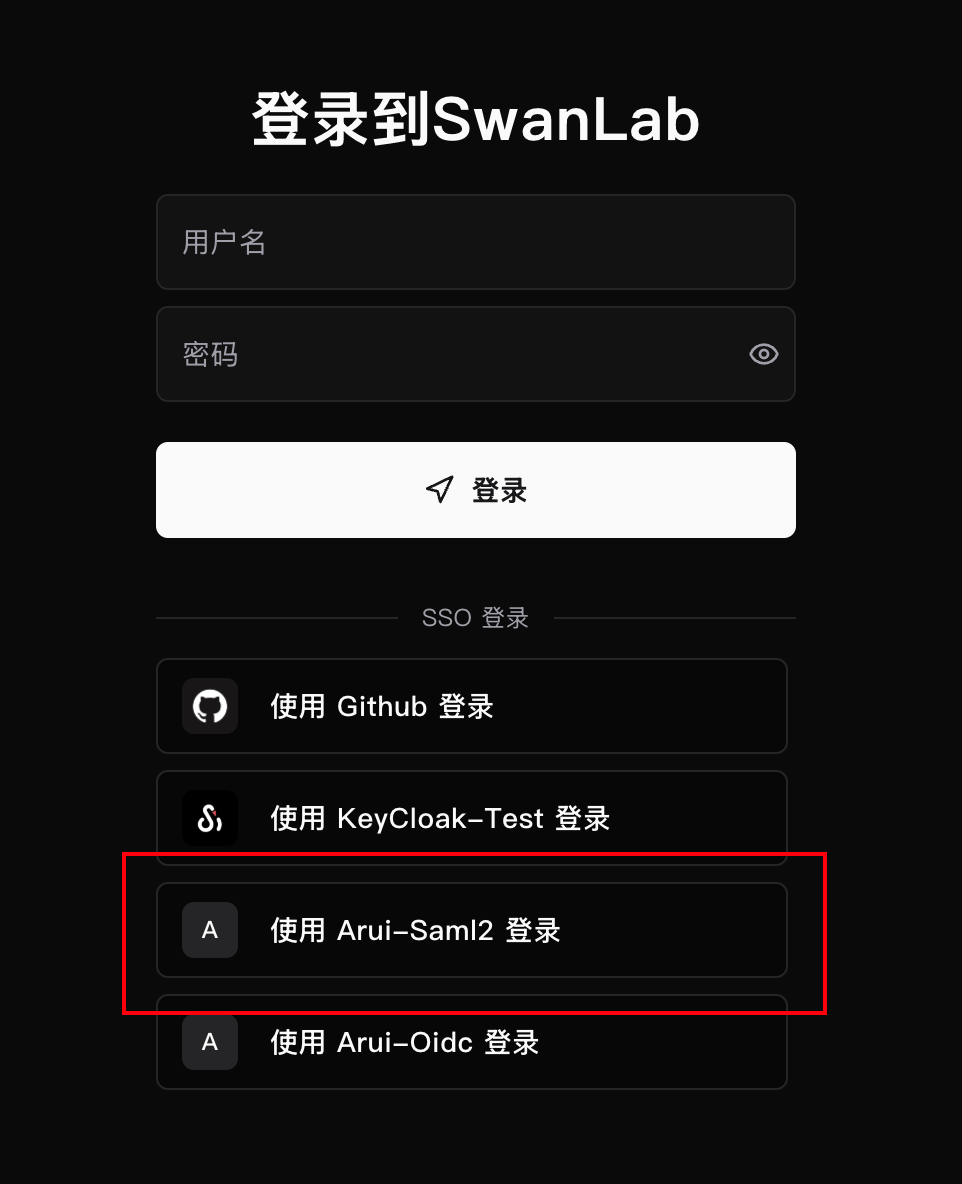
- View it in the login list.
3. SwanLab SP Addresses
SwanLab generates independent SP addresses for each SAML2 Provider.
SP Metadata address:
https://<SwanLab external access address>/api/auth/sso/saml2/metadata/<Provider name>ACS address:
https://<SwanLab external access address>/api/auth/sso/saml2/acs/<Provider name>EntityID:
https://<SwanLab external access address>/api/auth/sso/saml2/metadata/<Provider name>Example:
SP Metadata: https://swanlab.example.com/api/auth/sso/saml2/metadata/corp-saml2
ACS:         https://swanlab.example.com/api/auth/sso/saml2/acs/corp-saml2
EntityID:    https://swanlab.example.com/api/auth/sso/saml2/metadata/corp-saml2
4. IdP-side Configuration
When creating a SAML application in the IdP, you may need to configure:
| IdP field | SwanLab value |
|---|---|
| Single sign-on URL / ACS URL | SwanLab ACS address |
| Recipient URL | SwanLab ACS address |
| Destination URL | SwanLab ACS address |
| Audience URI / SP Entity ID | SwanLab EntityID |
| Name ID format | Default or unspecified |
| Response signature | Recommended to enable |
| Assertion signature | Recommended to enable |
| SP-initiated login | Must be allowed |
SwanLab signs AuthnRequests, so the IdP must accept signed requests. The current SAML Redirect Binding signature algorithm is selected as RSA-SHA256 or ECDSA-SHA256 according to the private key type.
- Keycloak configuration example:
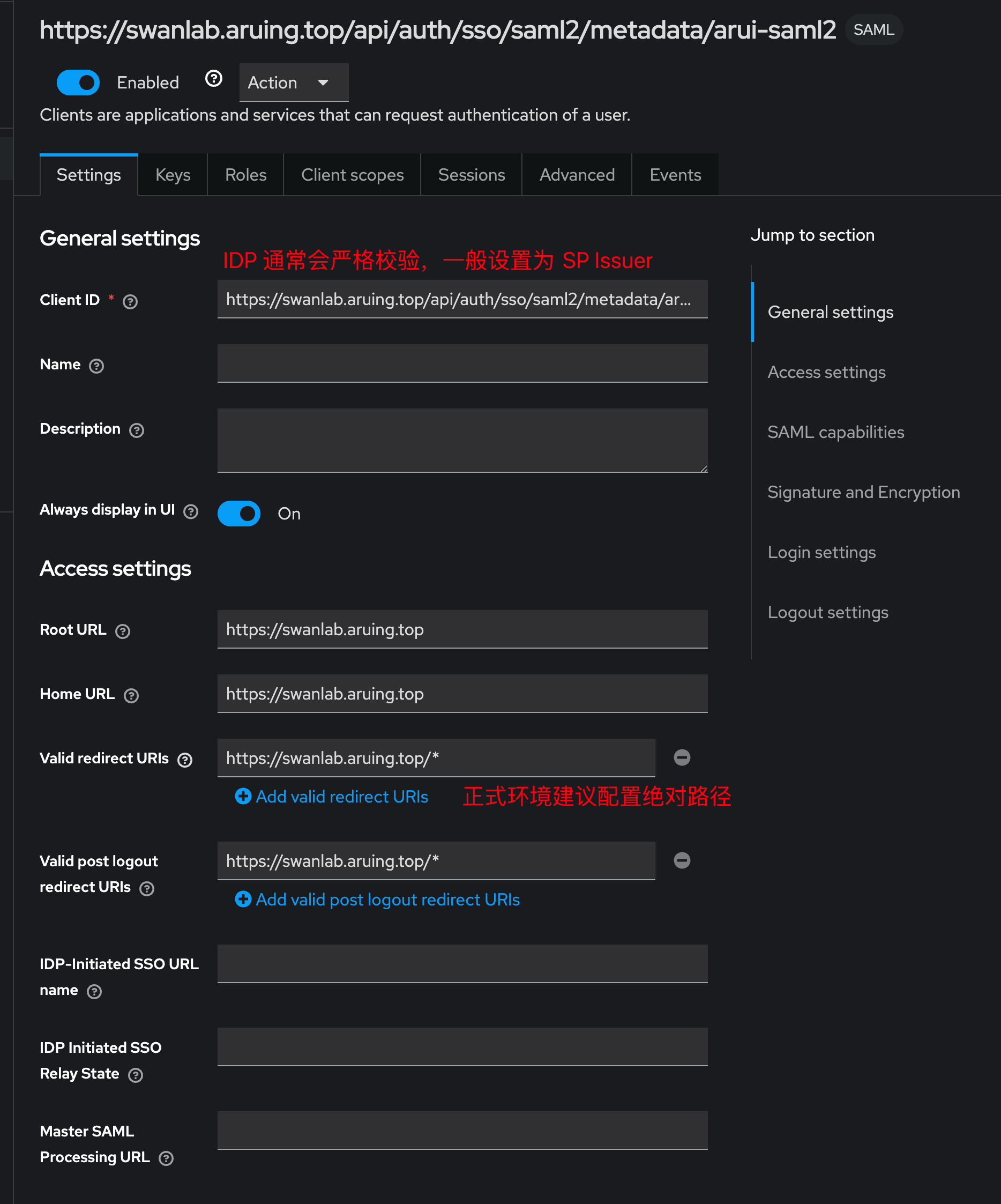
The Client ID is the Issuer. It usually needs to be configured as the SP Issuer address, which corresponds to the SwanLab EntityID address:
https://<SwanLab external access address>/api/auth/sso/saml2/metadata/<Provider name>You also need to upload the SwanLab certificate configured earlier to Keycloak; otherwise, Keycloak cannot parse the request:
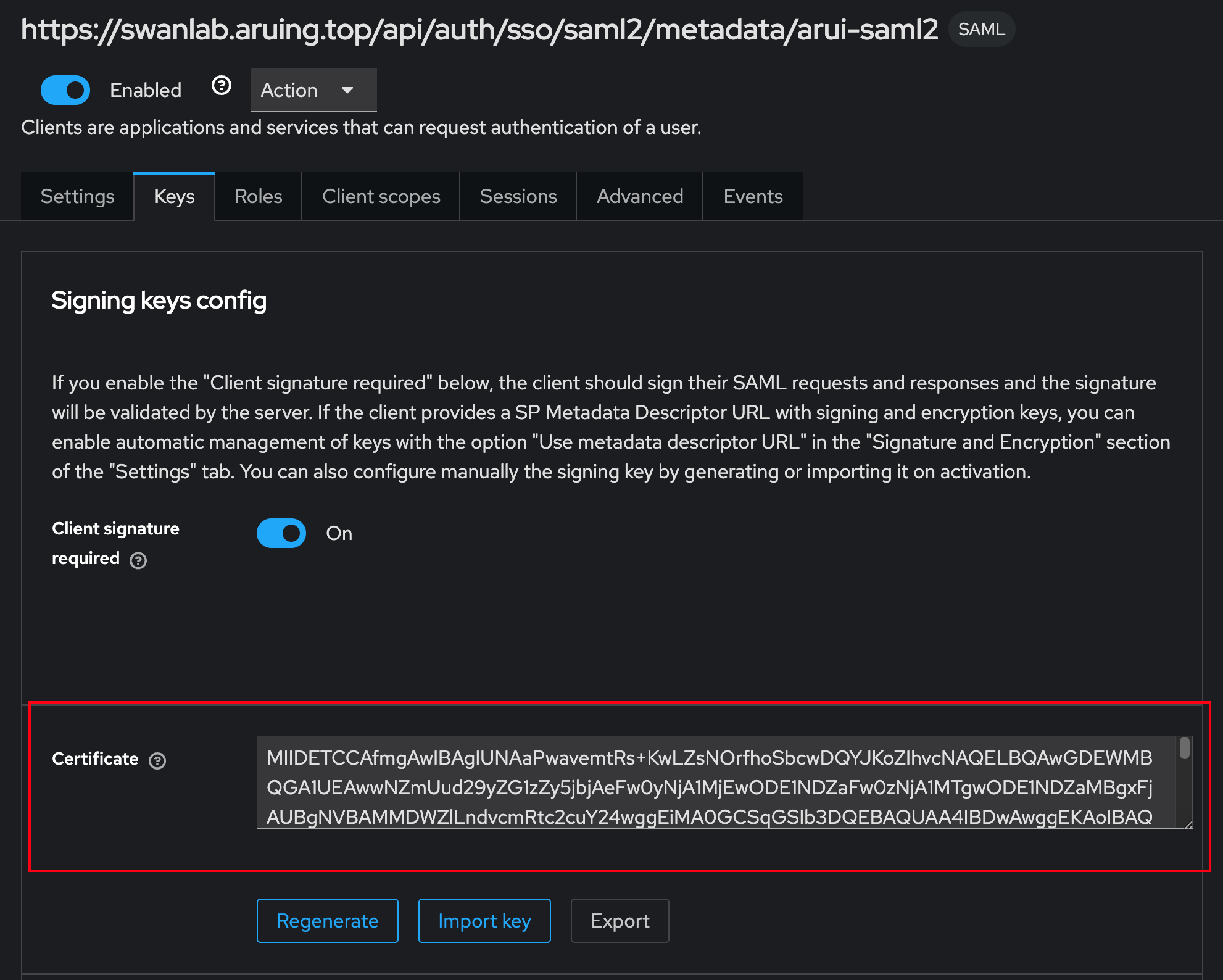
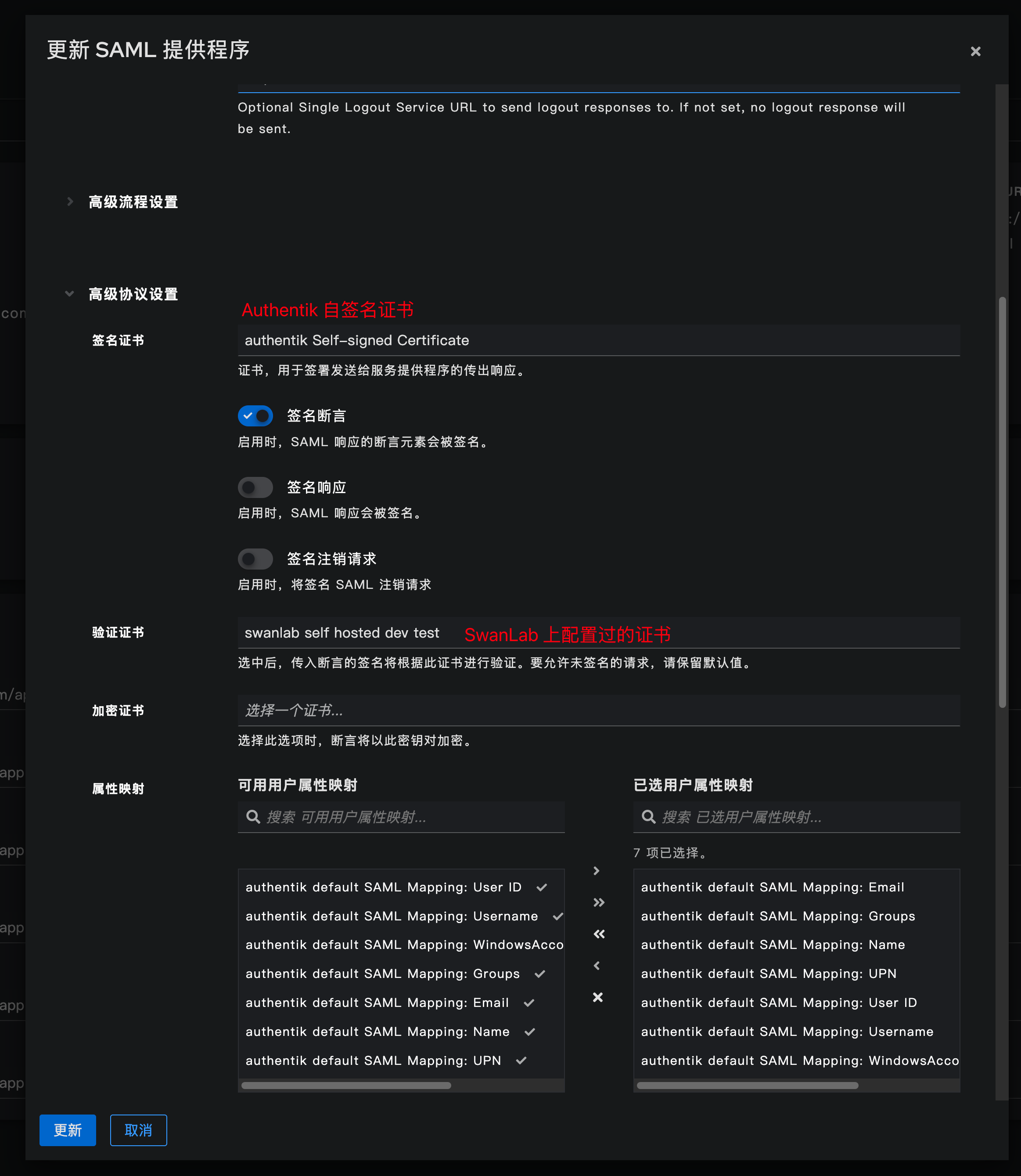
- Authentik configuration example:
The following fields are explicitly required:
- ACS URL: the corresponding SwanLab ACS address,
https://swanlab.example.com/api/auth/sso/saml2/acs/corp-saml2 - Issuer: the corresponding SwanLab EntityID,
https://swanlab.example.com/api/auth/sso/saml2/metadata/corp-saml2 - Audience: the corresponding SwanLab EntityID address,
https://swanlab.example.com/api/auth/sso/saml2/metadata/corp-saml2
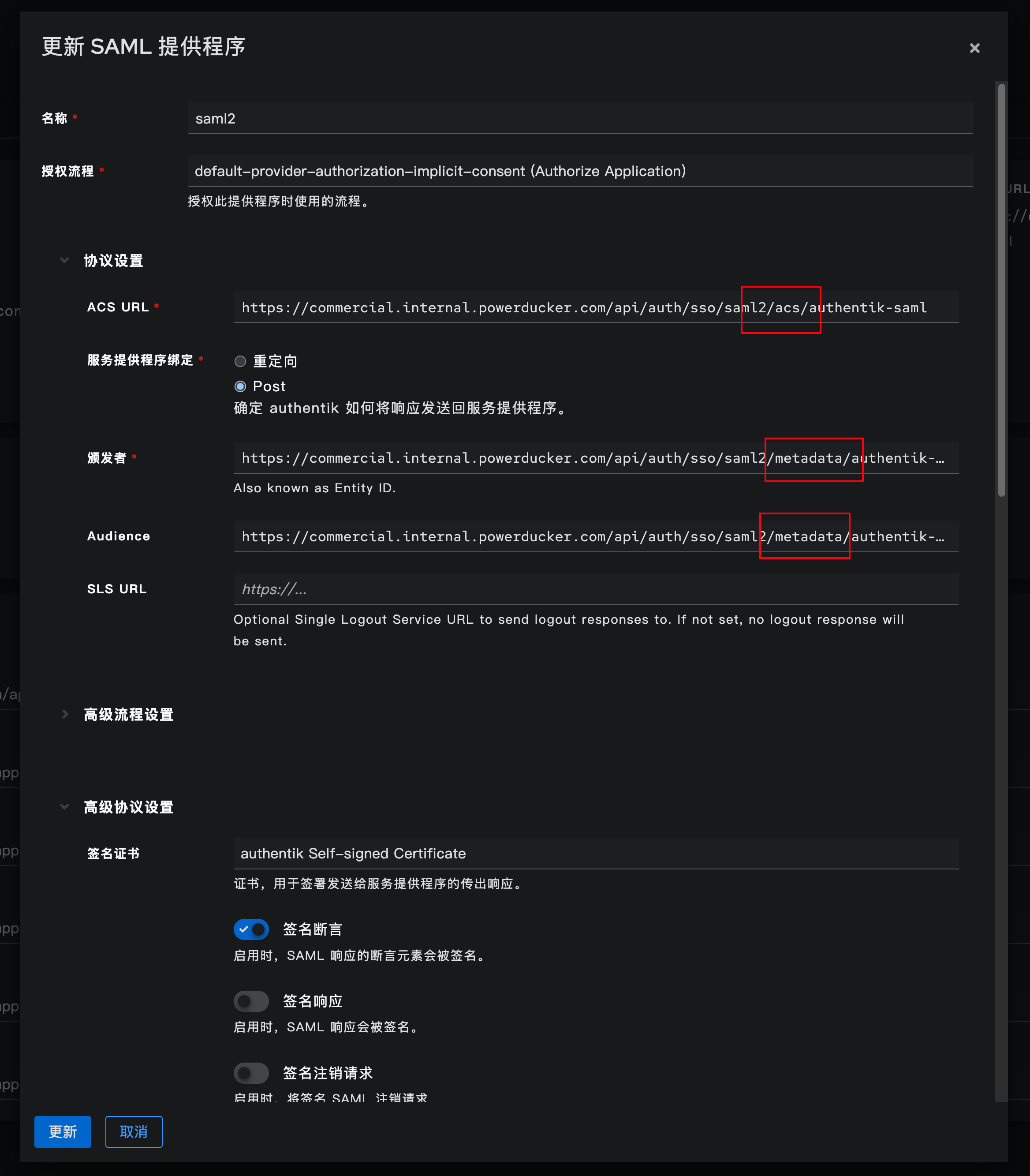
You also need to configure certificates:
- Signing certificate: Authentik self-signed certificate
- Verification certificate: the certificate configured in SwanLab