

Migrating from Docker Version to K8S Version

This guide is for migrating data from the SwanLab Docker version to the SwanLab Kubernetes (K8S) version. It only applies to scenarios where external services are integrated into the SwanLab Kubernetes (K8S) version (refer to Customizing Basic Service Resources).
If you wish to migrate to managed services provided by cloud vendors or to self-deployed cloud-native high-availability services, this guide can serve as a reference. Please also refer to the official migration documentation of the respective cloud vendor or cloud-native project, and ensure database names, table names, and object storage bucket names are correct during migration.
This solution requires:
- Migrating data first, then deploying the service.
- You use the Customizing Basic Service Resources feature.
- You have a busybox image for implementing migration tasks.
- Ensure your Storage Class's reclaim policy does not delete data when Pods are removed.
We pre-create PersistentVolumeClaims by packaging data, downloading it, and storing it in a volume, then mount these volume resources.
Please identify the resources you need to migrate:
- PostgreSQL Single Instance: Used to store SwanLab's core business data.
- Clickhouse Single Instance: Used to store metric data.
- MinIO Single Instance: Used to store media resources.
- Redis Single Instance: Cache service.
Among these, SwanLab-House does not require data migration.
WARNING
Before migrating, please ensure:
- Your Docker service has been stopped, or you need to ensure the migrated data is extracted from a specific storage snapshot.
- You have located the data volume path mounted by the SwanLab Docker version. By default, it should be in the
docker/swanlab/datadirectory of the self-hosted project. If you have forgotten the storage path, you can find the volume mount location for the corresponding service container using thedocker inspectcommand. - You have found the
docker-compose.yamlfile generated by swanlab. This is primarily for migrating account passwords. If you have forgotten the location of thedocker-compose.yamlfile, you can still find the corresponding account password environment variables usingdocker inspect.
For convenience, the following Docker-related commands are based on self-hosted/docker/swanlab/. Please adjust the paths according to your actual situation.
Additionally, the account passwords mentioned in this guide are for reference only; please adjust them according to your actual configuration.
Please identify the storage locations of various basic service resources in the Docker version:
- PostgreSQL data is in
self-hosted/docker/swanlab/data/postgres - Clickhouse data is stored in
self-hosted/docker/swanlab/data/clickhouse - Minio data is stored in
self-hosted/docker/swanlab/data/minio - Redis data is stored in
self-hosted/docker/swanlab/data/redis
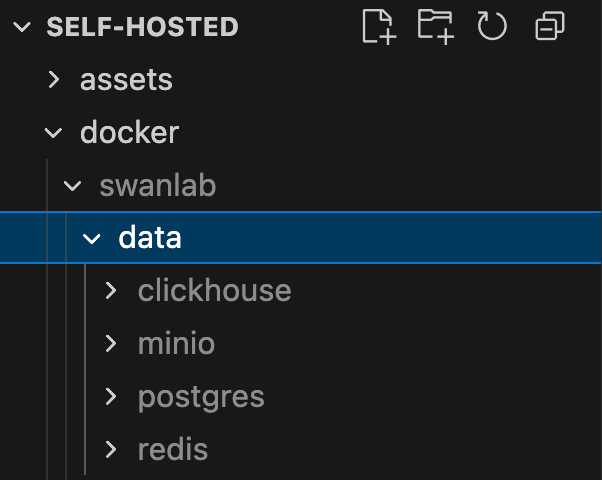
Glossary:
self-hosted: The deployed SwanLab Kubernetes cluster.
1. Migrate PostgreSQL
- Connection string example:
postgresql://swanlab:1uuYNzZa4p@postgres:5432/app?schema=public
1.1 Package and Upload the Archive
WARNING
Note: For PostgreSQL, its data directory is located at /var/lib/postgresql/data, corresponding to the external data volume at /data/postgres/data. However, PostgreSQL does not allow any folders other than data under the /var/lib/postgresql directory. Therefore, for PG, the final archive is a data directory.
Use the following command to package the pg data:
tar -czvf postgres-data.tar.gz -C data/postgres/ .Then upload it to object storage or any network storage service accessible by the cluster. In this example, we upload it to Aliyun Object Storage. The file link example is:
https://xxx.oss-cn-beijing.aliyuncs.com/self-hosted/docker/postgres-data.tar.gz1.2 Copy Data to the Persistent Volume
Reference configuration:
apiVersion: batch/v1
kind: Job
metadata:
  name: postgres-migrate
  labels:
    swanlab: postgres
spec:
  template:
    spec:
      restartPolicy: OnFailure
      containers:
        - name: postgres-migrate
          image: busybox:1.37.0
          imagePullPolicy: IfNotPresent
          volumeMounts:
            - name: postgres-volume
              mountPath: /data
          env:
            - name: FILE_URL
              value: "https://xxx.oss-cn-beijing.aliyuncs.com/self-hosted/docker/postgres-data.tar.gz"
          command:
            - /bin/sh
            - -c
            - |
              wget $FILE_URL -O /tmp/postgres-data.tar.gz
              tar -xzvf /tmp/postgres-data.tar.gz -C /data
      volumes:
        - name: postgres-volume
          persistentVolumeClaim:
            claimName: postgres-docker-pvc
1.3 Clarify Your Configuration
You need to modify the corresponding resources under dependencies.postgres to bind the PVC and correctly set the corresponding account passwords. Example:
dependencies:
  postgres:
    username: "swanlab"
    password: "1uuYNzZa4p"
    persistence:
      existingClaim: "postgres-docker-pvc"
self-hosteditself will create a Secret resource based onusernameandpasswordand will not store them in plain text.
2. Migrate Redis
In the SwanLab Docker version, the Redis connection string is the default redis://default@redis:6379.
2.1 Package and Upload the Archive
Use the following command to package the redis data:
tar -czvf redis-data.tar.gz -C data/redis/ .Then upload it to object storage or any network storage service accessible by the cluster. In this example, we upload it to Aliyun Object Storage. The file link example is:
https://xxx.oss-cn-beijing.aliyuncs.com/self-hosted/docker/redis-data.tar.gz2.2 Copy Data to the Persistent Volume
Reference configuration:
apiVersion: batch/v1
kind: Job
metadata:
  name: redis-migrate
  labels:
    swanlab: redis
spec:
  template:
    spec:
      restartPolicy: OnFailure
      containers:
        - name: redis-migrate
          image: busybox:1.37.0
          imagePullPolicy: IfNotPresent
          volumeMounts:
            - name: redis-volume
              mountPath: /data
          env:
            - name: FILE_URL
              value: "https://xxx.oss-cn-beijing.aliyuncs.com/self-hosted/docker/redis-data.tar.gz"
          command:
            - /bin/sh
            - -c
            - |
              wget $FILE_URL -O /tmp/redis-data.tar.gz
              tar -xzvf /tmp/redis-data.tar.gz -C /data
      volumes:
        - name: redis-volume
          persistentVolumeClaim:
            claimName: redis-docker-pvc
Note the PVC name, and run it after confirming it's correct.
2.3 Clarify Your Configuration
You need to modify the corresponding resources under dependencies.redis to bind the PVC. Example:
dependencies:
  redis:
    persistence:
      existingClaim: "redis-docker-pvc"
3. Migrate Clickhouse
3.1 Package and Upload the Archive
- Connection string:
tcp://swanlab:2jwnZiojEV@clickhouse-docker:9000/app - HTTP port:
8123
Use the following command to package the clickhouse data:
tar -czvf clickhouse-data.tar.gz -C data/clickhouse/ .Then upload it to object storage or any network storage service accessible by the cluster. In this example, we upload it to Aliyun Object Storage. The file link example is:
https://xxxx.oss-cn-beijing.aliyuncs.com/self-hosted/docker/clickhouse-data.tar.gz3.2 Copy Data to the Persistent Volume
Reference configuration:
apiVersion: batch/v1
kind: Job
metadata:
  name: clickhouse-migrate
  labels:
    swanlab: clickhouse
spec:
  template:
    spec:
      restartPolicy: OnFailure
      containers:
        - name: clickhouse-migrate
          image: busybox:latest
          imagePullPolicy: IfNotPresent
          volumeMounts:
            - name: clickhouse-volume
              mountPath: /data
          env:
            - name: FILE_URL
              value: "https://xxx.oss-cn-beijing.aliyuncs.com/self-hosted/docker/clickhouse-data.tar.gz"
          command:
            - /bin/sh
            - -c
            - |
              wget $FILE_URL -O /tmp/clickhouse-data.tar.gz
              tar -xzvf /tmp/clickhouse-data.tar.gz -C /data
      volumes:
        - name: clickhouse-volume
          persistentVolumeClaim:
            claimName: clickhouse-docker-pvc
3.3 Clarify Your Configuration
You need to modify the corresponding resources under dependencies.clickhouse to bind the PVC and correctly set the corresponding account passwords. Example:
dependencies:
  clickhouse:
    username: "swanlab"
    password: "2jwnZiojEV"
    persistence:
      existingClaim: "clickhouse-docker-pvc"
self-hosteditself will create a Secret resource based onusernameandpasswordand will not store them in plain text.
4. Migrate Minio
- accessKey:
swanlab - accessSecret:
qtllV4B9KZ
4.1 Package and Upload the Archive
Use the following command to package the minio data:
tar -czvf minio-data.tar.gz -C data/minio/ .Then upload it to object storage or any network storage service accessible by the cluster. In this example, we upload it to Aliyun Object Storage. The file link example is:
https://xxx.oss-cn-beijing.aliyuncs.com/self-hosted/docker/minio-data.tar.gz4.2 Copy Data to the Persistent Volume
Reference configuration:
apiVersion: batch/v1
kind: Job
metadata:
  name: minio-migrate
  labels:
    swanlab: minio
spec:
  template:
    spec:
      restartPolicy: OnFailure
      containers:
        - name: minio-migrate
          image: busybox:latest
          imagePullPolicy: IfNotPresent
          volumeMounts:
            - name: minio-volume
              mountPath: /data
          env:
            - name: FILE_URL
              value: "https://xxx.oss-cn-beijing.aliyuncs.com/self-hosted/docker/minio-data.tar.gz"
          command:
            - /bin/sh
            - -c
            - |
              wget $FILE_URL -O /tmp/minio-data.tar.gz
              tar -xzvf /tmp/minio-data.tar.gz -C /data
      volumes:
        - name: minio-volume
          persistentVolumeClaim:
            claimName: minio-docker-pvc
4.3 Clarify Your Configuration
You need to modify the corresponding resources under dependencies.minio to bind the PVC and correctly set the corresponding account passwords. Example:
dependencies:
  s3:
    accessKey: "swanlab"
    secretKey: "qtllV4B9KZ"
    persistence:
      existingClaim: "minio-docker-pvc"
5. Deploy the Service
After completing the above four steps, you can begin deploying the SwanLab Kubernetes service.
For basic operations on deploying the Kubernetes service, see: Deploying with Kubernetes.
You only need to modify the dependencies section based on the original values.yaml.
Reference values (please ensure your credentials are correct):
dependencies:
  postgres:
    username: "swanlab"
    password: "1uuYNzZa4p"
    persistence:
      existingClaim: "postgres-docker-pvc"
  redis:
    persistence:
      existingClaim: "redis-docker-pvc"
  clickhouse:
    username: "swanlab"
    password: "2jwnZiojEV"
    persistence:
      existingClaim: "clickhouse-docker-pvc"
  s3:
    accessKey: "swanlab"
    secretKey: "qtllV4B9KZ"
    persistence:
      existingClaim: "minio-docker-pvc"
After making the modifications, execute the following command to deploy the SwanLab Kubernetes service:
helm install swanlab-self-hosted swanlab/self-hosted -f values.yamlAfter deployment, if you are already logged into the SwanLab Docker version in your browser and the domain name remains the same before and after migration, you do not need to log in again.
For more detailed operations on Kubernetes deployment, please refer to: Deploying with Kubernetes.